Mailing list
Get up-to-date information about changes, new features, and news about OL Monitor and sister site: SynapSonic.com (Emails are minimal and you can opt out of website update news).
Trouble installing?
Be sure to read through the NEW installation instructions on the Download page.
Check common install topics on the Blog.
Getting an error message?
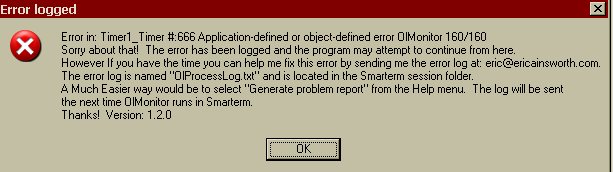
Are you seeing the annoying: "Sorry about that!..." message? Click this link for step-by-step instructions on what to do.
No tests showing/missing tests?
Skip to this section to view common causes and solutions.
Remote support
Skip to this section to view instructions and requirements on getting remote support.
Video tutorials
There is a growing collection of useful tutorials on the Youtube channel.
Looking for the Manual?
The Online Manual will always be the most up-to-date. The PDF version may be the best for printing.
- Online Online manual.
- 2.5 MB Manual in PDF format.
- 11 MB Manual in RTF (Microsoft Word) format.
Need to ask a question or get help?
- Try a search using the Search bar at the top of the screen.
- Post your question to the new forum. New forum
- Browse the Old Forum (many useful posts).
- The blog has many answers to specific issues. OL Monitor Blog
- Get answers to your questions via email or phone. Contact
Helpful programs and manuals
A few OL Monitor utilities are available that support OL Monitor.
*OL Monitor Updater and Notifier links are available to registered users only. Contact or check OL Monitor newsletter email for download links.
- OL Monitor Updater (In versions 1.90m and higher) Online manual.
- Update Notifier Online manual.
-
OL Monitor OverSeer
OverSeer Overview.
OverSeer Download. -
OL Monitor Settings Manager
Settings Manager Manual.
Settings Manager Download.
Troubleshooting steps
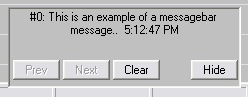
Error messages come in two forms, the pop-up box and MessageBar messages. The pop-up box means something
has gone pretty wrong:
Messagebar messages are generally just for information. Often important information such as the Sunquest password has
expired or Smarterm is on the fritz:
Step 1: Have you tried the General Troubleshooting Steps? So often the issue is solved just by restarting the program or rebooting the computer.
Problem Report
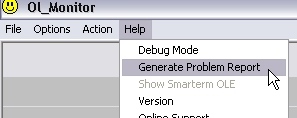
The most efficient way to get your issue looked at is by sending a Problem Report. It's actually very easy. Just Click Help-Generate
Problem Report:
Click here if you would rather send the error log instead of a problem report.
Step 3A:
If you have versions 1.76 or later you will see this form: (previous versions see 3B below)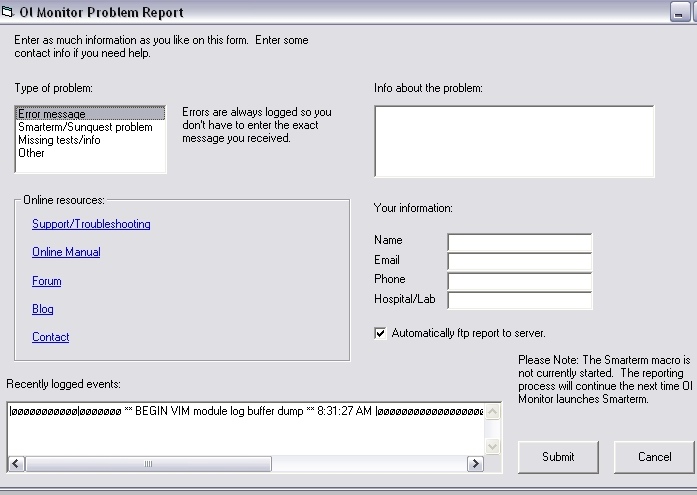
Step 3B: Versions 1.75 and earlier:
A form will pop up asking for some info like an email and what happened.
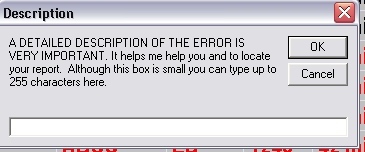
(Sometimes problem reports show up with no contact info or explanation. Not much gets done with these.)
After that the Smarterm macro is told there was an error and you'll see this box:
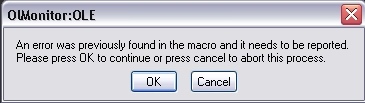
When you click OK the report will be automatically compiled (this may take some time):
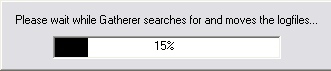
and sent to the server:
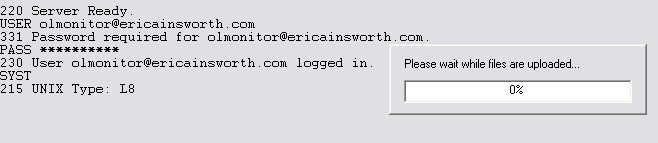
You may want to follow up the report with an email: Contact
Most of the time errors require specific information that is difficult to locate without knowing the program, and I end up recommending a problem report. That is why I often recommend trying to send the report first before calling or emailing.
Step 4A:
Problem report succeeded. You will see this: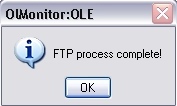
Great success! Files are at the server and troubleshooting can commence. You can send a follow up email or just wait for a response to your report.
If you do not receive a response within 72 hours there may have been a problem receiving your message OR
it's possible my email responses have been blocked by your organization's spam-filters.
Problem Report Failed
Step 4B:
Problem report failed. Sadly this is a common occurrence since IT security protocols may block FTP access.However the Problem Report was still generated and should be sitting on the desktop:
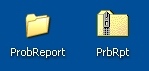
You can simply email this file to me. Remember to send a follow up email in case the first email doesn't make it (see note below).
Note: In some cases, your firewall may also block outgoing emails with file attachments! In this case an alternative might be to try using a personal hotmail, yahoo, or gmail account to send the file. Also, you can try renaming the file extension from .zip to .bak or something so that it won't be blocked.
If for some reason this file is not there, see the table at the bottom of the page for manually locating the files yourself.
Locating the error log - olprocesslog.txt:
Step 1:
Click Help-Locate OlProcesslog: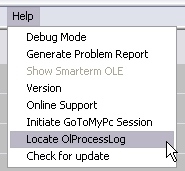
Step 2:
A folder will open where the logfile resides: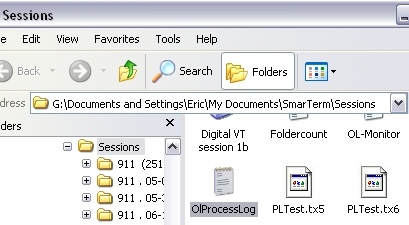
Step 3:
You can now email me this log or examine it if you are curious.If you send files using email: Send 2 emails, one to let me know you are about to send a logfile and attach the logfile to the 2nd. (Emails with attachments may be blocked by your organization's firewall.)
Step 4:
The location of other important files are listed in the table below.Remote support:
Remote support:
Remote access for troubleshooting is an option. These days IT security may have policies regarding remote access. Check with your IT department before installing Join.me. If you have purchased OL Monitor and are still within the support period you can get immediate direct support from me via Join.me or whatever screen sharing app you prefer. See below.
Why mess with screen prints and logs when you can just show me what's going on? I have had a GREAT deal of success
with this it is absolutely the quickest way to troubleshoot!
For more info on what Join.me is try their website: Join.me.
General Troubleshooting Tips:
1.
Close Ol Monitor and Smarterm and restart OL Monitor.Sometimes Smarterm or OL Monitor will freeze, you can end them with the windows Task Manager.
Press ctrl-alt-delete:
Click on the 'Image Name' column to sort by name, then end any OlMonitor.exe and STOffice.exe processes:
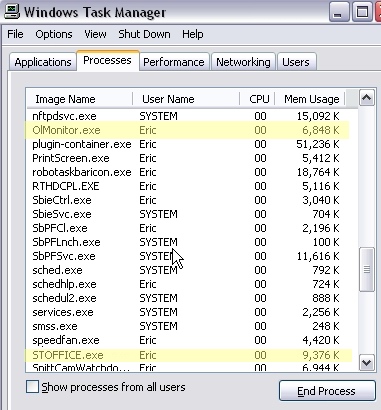
Now try restarting OL Monitor.
2.
Try rebooting the computer.3.
Update Ol Monitor: UpdateUpdating.
Common problems and solutions:
2.
Installing/testing as admin was working, but after switching to generic user having issues- Ol Monitor is restricted from accessing the registry or the Smarterm Sessions folder.
- Try switching to using ini file for settings.
- Have IT give Olmonitor.exe read/write access to the"..My Documents\Smarterm\Sessions" folder.
- Have a look at the Install issues blog.
Tests not showing / missing tests:
1.
If the Ol Monitor list is completely blank and this is your first time running it, you may need to follow the general troubleshooting tips and make sure that Smarterm is pulling the log.2.
Look on the Misc tab of settings, make sure 'Status Column' is UN-Checked.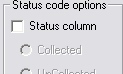
- Also make sure that at minimum you have a Sunqest login, password, and IP address in the settings.
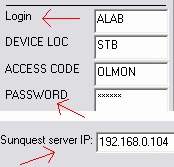
- If Smarterm appears to be working, try clicking Options-Filters to disable filters temporarily
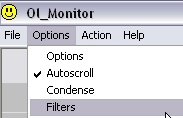 <-- Filter toggle: No checkmark means disabled.
- If you are getting data but missing certain tests, you can print a hard copy of the Overdue Log (or Pending log if you have that installed) to make sure those tests are showing up on the log. If you don't want to waste paper you can look at the captured logfiles in the Smarterm Sessions folder. Open them with notepad.
- The 'Overdue days' must be set to '0' in the test maintenance of Sunquest for that test to appear on the Overdue log. Most sites have all their tests set to 0 but some do not.
- If you are seeing data but missing certain fields/info: If you are looking for Smart info such as Rack/Slot, make sure the Smart option is enabled in settings.
- "I can see the tests on a hard copy of the Overdue Log, I have checked the filters, but still not seeing some tests on OL Monitor or missing information": Okay, one last check, make sure there are no Departmental Filters defined.
Especially in the case of Smart info, I occasionally have to adapt Ol Monitor to the various styles of different sites. To troubleshoot this I will need a Problem Report or a sample of one of your logfiles.
When there are problems with the problem report:
The most common reason for problem report failure is a firewall. Contact your IT department about unblocking ftp service.
If there is a problem with Smarterm it may not be able to take commands from Ol Monitor. Smarterm is used for automatic
report sending.
If you are logged on as a limited user (generic user) your logon may not have rights to perform the actions necessary to create
and send the report. In extreme cases Ol Monitor cannot place the codefiles
(precompiled files), into the Smarterm folder. These codefiles are necessary for basic operation in Smarterm.
If you have error logging turned on the error has been logged to a file. If you with to automatically send the file
to olmonitor.com then click help-generate problem report from the menu. Smarterm is utilized to ftp reports so if it
is not running the option will be grayed out. If you click start from the action menu the server will restart and you can
try again. If for any reason (such as problems with Smarterm itself), you cannot get the problem report to generate or ftp,
you can find the files yourself and email them to me.
The files of interest are below.
Files useful for troubleshooting. (In order of importance.):
| File | Win 7-10 location | Win XP location | Other | Notes |
|---|---|---|---|---|
PrbRpt.zip |
C:\Users\YourUsername\Desktop\ | C:\Documents and Settings\YourUsername\Desktop\ | C:\Documents and Settings\All Users\Desktop\ | The most useful of all files, This is the zipped file containing all logfiles and info. (In very old versions of Ol Monitor, it may be found here: C:\Program Files\Esker\Smarterm\) |
OlProcessLog.txt |
C:\Users\Public\Documents\OlMonitor | C:\Documents and Settings\YourUsername\Documents\Smarterm\Sessions | C:\Documents and Settings\All Users\Documents\Smarterm\Sessions | You can always find the OlProcessLog.txt file easily by clicking "Help-Locate OlProcessLog.txt" from the Ol Monitor menu bar. |
Text.tx10 |
C:\Users\Public\Documents\OlMonitor | C:\Documents and Settings\YourUsername\Documents\Smarterm\Sessions | C:\Documents and Settings\All Users\Documents\Smarterm\Sessions | Test.tx10, Test.tx9, etc. These are the captured Overdue Logs. |
OlMon.ini |
C:\Users\Public\Documents\OlMonitor | C:\Program Files\OLMonitor VIM | C:\Documents and Settings\YourUsername\Documents\Smarterm\Sessions | If you chose to use an ini file for your settings location, this is where your settings are stored. |
MacroErrors.txt |
C:\Users\YourUsername\Desktop\PrbRpt | C:\Documents and Settings\YourUsername\Desktop\PrbRpt | C:\Documents and Settings\All Users\Desktop\PrbRpt | When you do a problem report, this file is created. It's more of a header file and is only slightly useful. |
Registry settings |
See this page: Managing settings for instructions on exporting your registry settings to a file. | Manage settings easily: Try out OL Monitor Settings Manager. | Instructions: OL Monitor Settings Manager manual. | Registry export files have the extension ".reg". |