IT Silent Install
Settings Management
OL Monitor Settings Manager is a ClickOnce application that can be downloaded and used to manage settings.
The Settings Manager is already included in the OL Monitor installation under Options-Misc tab.
OL Monitor settings manager
OL Monitor settings manager manual
Exporting/Importing settings
Settings can be imported/exported from the Options tab in Ol Monitor.
Managing Settings - Manually / "DIY method"
You may want to check and see which location your settings are stored in. For more info click the link below:
Ini file or Registry ?
Settings stored using ini file: (Manual backup)
*** If you are using the ini file option your settings are
not stored in the registry. You can simply find and copy the "OlMon.ini"
file from the application folder to your backup folder.
To open up a window to the application folder in Windows click
start - run, and in the box paste the following:
Windows XP and old versions of OL Monitor:
explorer /e, c:\program files\OLMonitor VIMWindows 7 and newer versions of OL Monitor:
explorer /e, C:\Users\Public\Documents\OlMonitor
The folder will open containing the ini file:
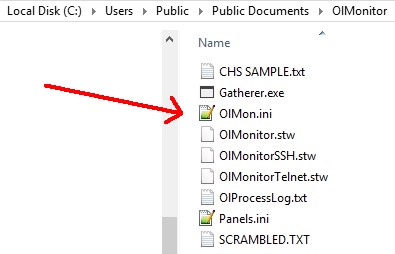
Copy and paste this file to your backup folder.
Settings stored using Registry: (Manual backup)
*** TIP command line backup of settings: When upgrading you
should not lose any settings but if you want to be absolutely
sure try this:
In windows Click start - run in the box paste the following:
regedit /E C:\TEMP\OLCU.REG "HKEY_CURRENT_USER\Software\BasicScript Program
Settings"
If using Windows XP and a version below 1.77 repeat and paste:
regedit /E C:\TEMP\OLLM.REG "HKEY_LOCAL_MACHINE\Software\BasicScript
Program Settings"
assuming you have a folder named 'temp' on your c drive
your settings should now be backed up there.
Using Windows Registry Editor to manage Settings
The section of the registry where settings are stored is the CURRENT_USER section, therefore if you log on as a different user the settings
will disappear when you reload OL Monitor with a new user.
Older versions (Windows XP) of OL Monitor only:
If you stored settings for all users, you will find your settings under the LOCAL_MACHINE section. Export this section if you are porting settings from one pc to another
and want all the settings to be available to any user of that pc.
You can import and export your settings easily using the Windows Regedit program.
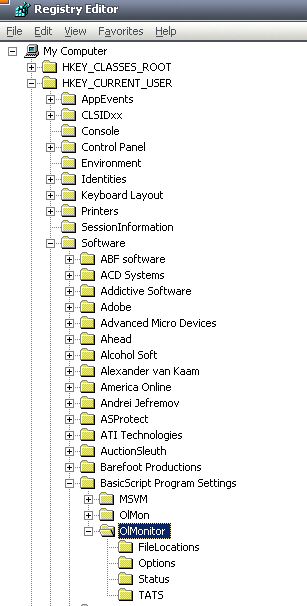
1. Start Regedit:
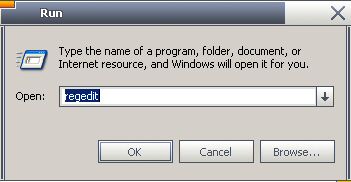
To start registry editor in Windows click "Start - Run..." type "regedit" (without quotes) in the box.
2. Find the key:
Drill down to:
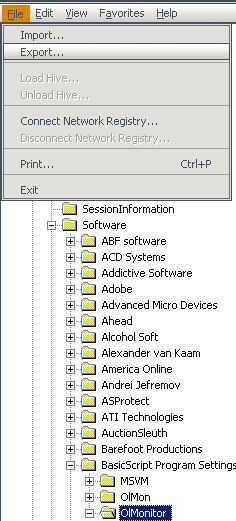
HKEY_CURRENT_USER - Software - BasicScript Program Settings - OlMonitor.
After you have selected OlMonitor, from the File menu select "Export":
3. Name:
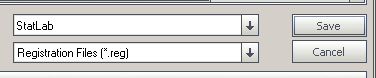
Type a descriptive name and save your .reg file.
Importing settings:
.reg files can be imported just by double-clicking them. You will be asked to confirm importations. Restart the macro for settings to take effect. That's it!

IT silent rollout instructions
Explains how to install the program with no user interaction required. Version 1.29b or above supports the silent install.
Registry entry
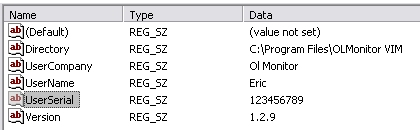
Normally the program requires a serial to install. You can place the serial into the registry beforehand and the silent install will complete successfully.
Here is an example .reg file that can be modified and imported. Replace "123456789" with your valid serial: Reg File
This is how the key looks in regedit:

Command line switch
Use the same setup.exe file that was provided on the cd
or with the updated web version.
The command line switch to install without any user interaction is: /silent
setup.exe /silent
*Notes:
- The program will install with all the default options.
- A message will NOT pop up indicating completion of the installation. The setup program will return a '0' if the installation failed or a '1' if the installation was a success.
- Currently the email registration web page WILL be launched. This may be changed in a future version.
- The UNinstaller will also uninstall the program in silent mode if the program was installed with the silent switch.
From the installer documentation
No user interface will be shown. Same as executing the setup program with /silent command line switch. All
questions that would be shown to the user during non
silent
setup are presumed to be answered as Yes (YesNo, YesNoCancel), OK (OKCancel), Cancel (RetryCancel) or Ignore
(AbortRetryIgnore).
The return value of the process is 1 if the installation was completed successfully and 0 or negative value on error.
Note that the return value is 0 also if one instance of the setup process is already running. Also notice that silent
setup will always fail if 'User Information'-dialog is selected to be shown. This is the
case so that nobody can skip serial verification by running the setup with /silent switch.
Details on silent install process
The following prompts normally appear in the installer, the silent installer will default to Yes, OK, or Ignore:
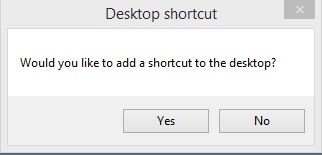 <- Defaults to Yes.
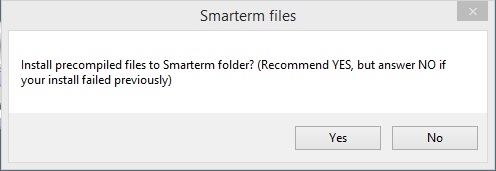 <- Defaults to Yes.
Sometimes if the installer is not run with admin rights this part of the setup will fail and the entire setup will fail.
Since the precompiled files go in a folder similar to: "C:\Program Files\Esker\Smarterm" , the installer needs to be able to write to that folder.
For more information on this requirement see precompiled files.
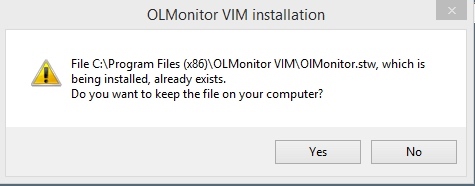 < -- Defaults to Yes.
If you are updating, there will already be an OlMonitor.stw session file. This file contains the IP address of the Sunquest server and a couple of other settings details,
so Yes is the best answer (unless the session file has become corrupted, which is rare but has happened)
*Other prompts such as this may appear:
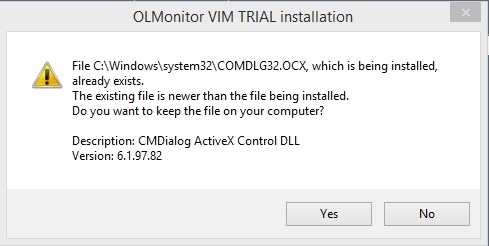 <-- Yes is to KEEP existing newer file.
It is possible this dialog could appear (or in the case of silent install, not appear). If you run into this dialog during the course of your testing,
you may be using an older version of Ol Monitor. Contact me if you would like to get the latest version of Ol Monitor.
Finally, the email list prompt will default to yes, launching the synapsonic.com webpage:
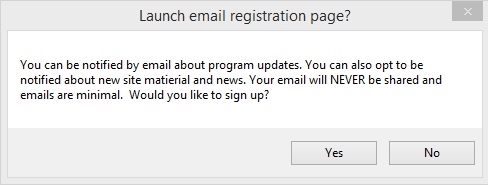
In a way this is a nuisance, in another way it does confirm the install finished.
(This dialog may be changed in future versions.)